How to Register as a Contractor on Everlook: A Step-by-Step Guide
·

What you need before you start
Everlook is a UAE home-services marketplace: clients post jobs, licensed contractors answer them. The contractor account (Everlook calls it a PRO account) is separate from the customer account, and signup is built around one thing: your trade licence.
Have three things ready before you open the form:
- Your trade licence number. The form looks it up in the licence registry (the same DED records your clients can check) and pulls your registered trade name automatically.
- An email address you actually check. A six-digit confirmation code lands there a few seconds after you submit the form.
- Scans of your documents. Your commercial licence, plus the Emirates ID or passport of the person named on it. PDF or photo, up to 25 MB each.
With the documents already on your phone, the whole flow (signup form, email confirmation, and a nine-step profile wizard) takes about ten minutes.
Step 1: choose the contractor role
Open the signup page. Everlook first asks "What do you want to do?" and shows two cards: "Hire a professional" is for customers, "Get job requests" is for contractors and companies. Press Continue on the Get job requests card.
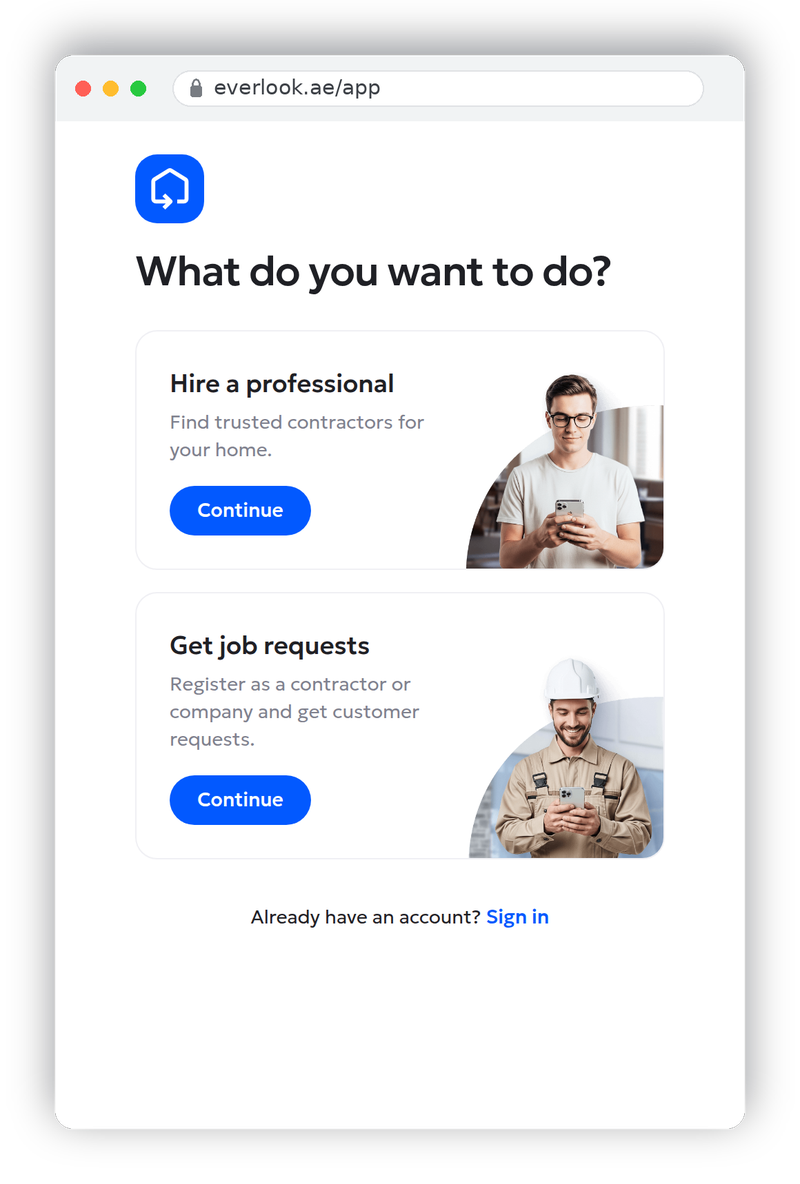
If you already created a customer account by mistake, don't reuse it: the two account types have different profiles and different home screens. Sign up again through the "Get job requests" card with a different email.
Step 2: create your PRO account
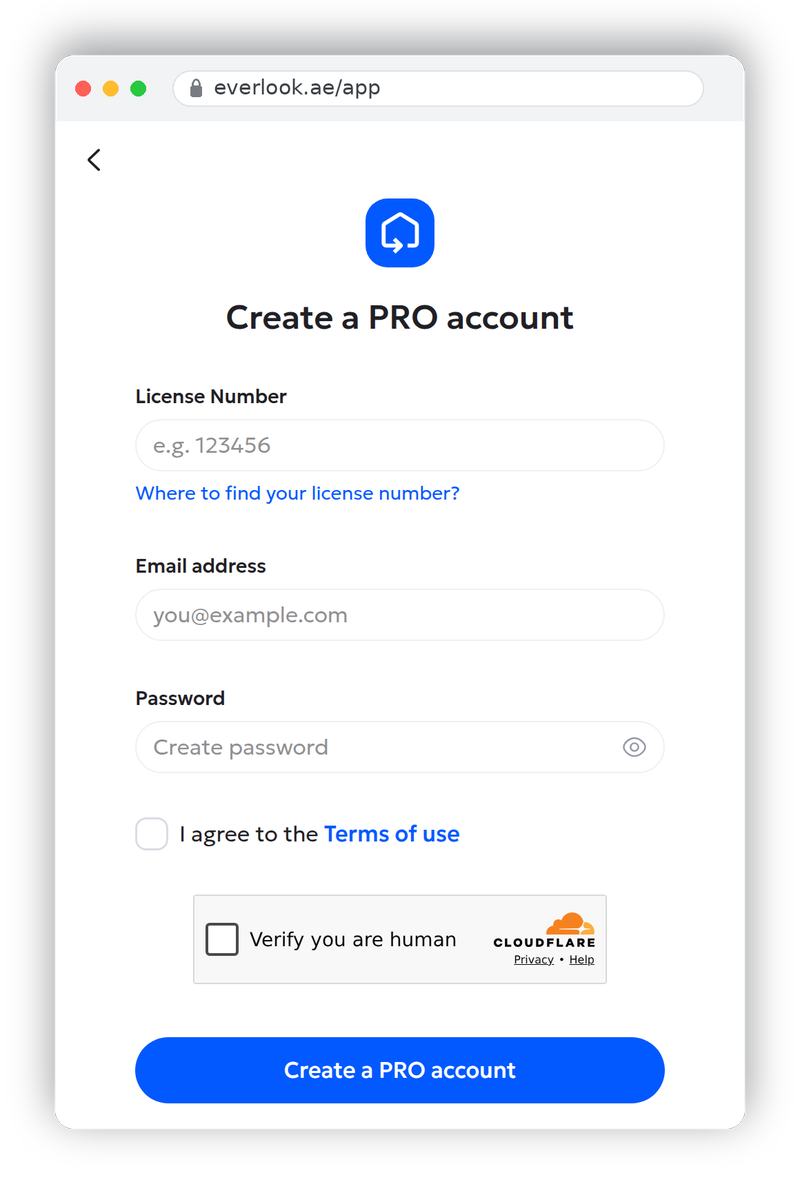
The "Create a PRO account" form asks for four things.
License Number. Digits only. When you move to the next field, Everlook looks the number up and fetches your registered trade name in the background. If the lookup finds your company, the business name is filled in for you. If it doesn't (new licences and some free-zone registrations aren't matched automatically), a "Business name" field appears: type the trade name exactly as it appears on your licence, because clients will see it on your profile and the verification team will compare the two.
Email address. This is your login email. It doesn't have to be the public contact email clients see; you add that separately later.
Password. At least 8 characters, with a letter, a number and a special character. The checklist under the field ticks off each rule as you type, so there is no guessing.
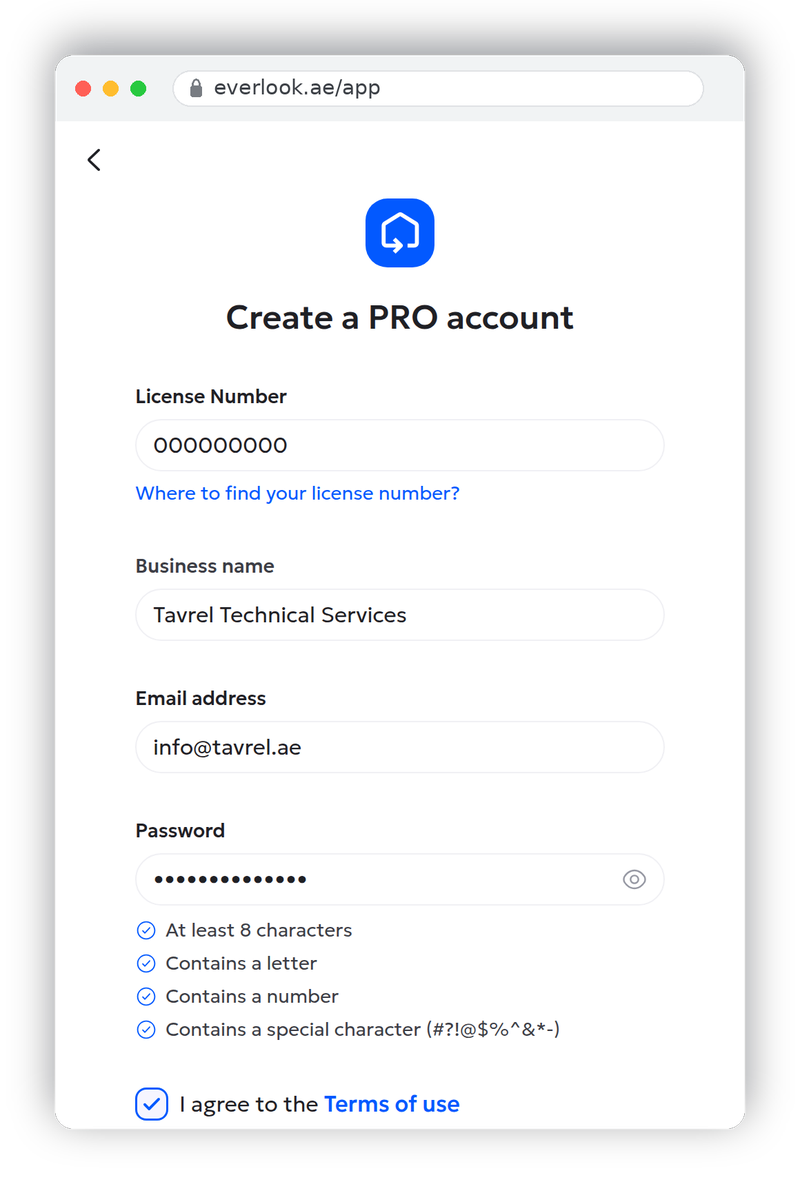
Tick the box agreeing to the terms of use, pass the "Verify you are human" check, and press Create a PRO account.
Step 3: confirm your email
Everlook sends a six-digit code to the address you entered. Type it into the six boxes on the confirmation screen; the form verifies it the moment the last digit goes in.
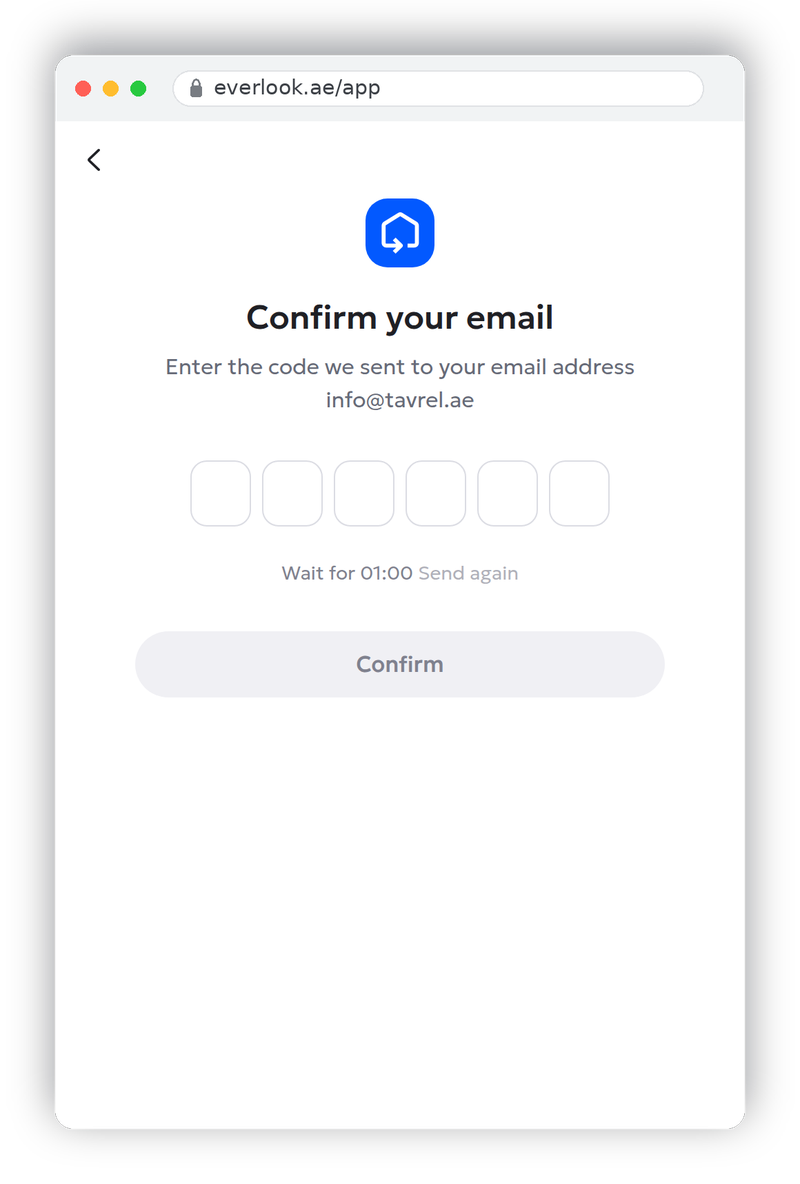
No code after a minute or two? Check the spam folder first. The "Send again" link activates 60 seconds after the first send. If you mistyped the address, use the back arrow to return to the form and correct it.
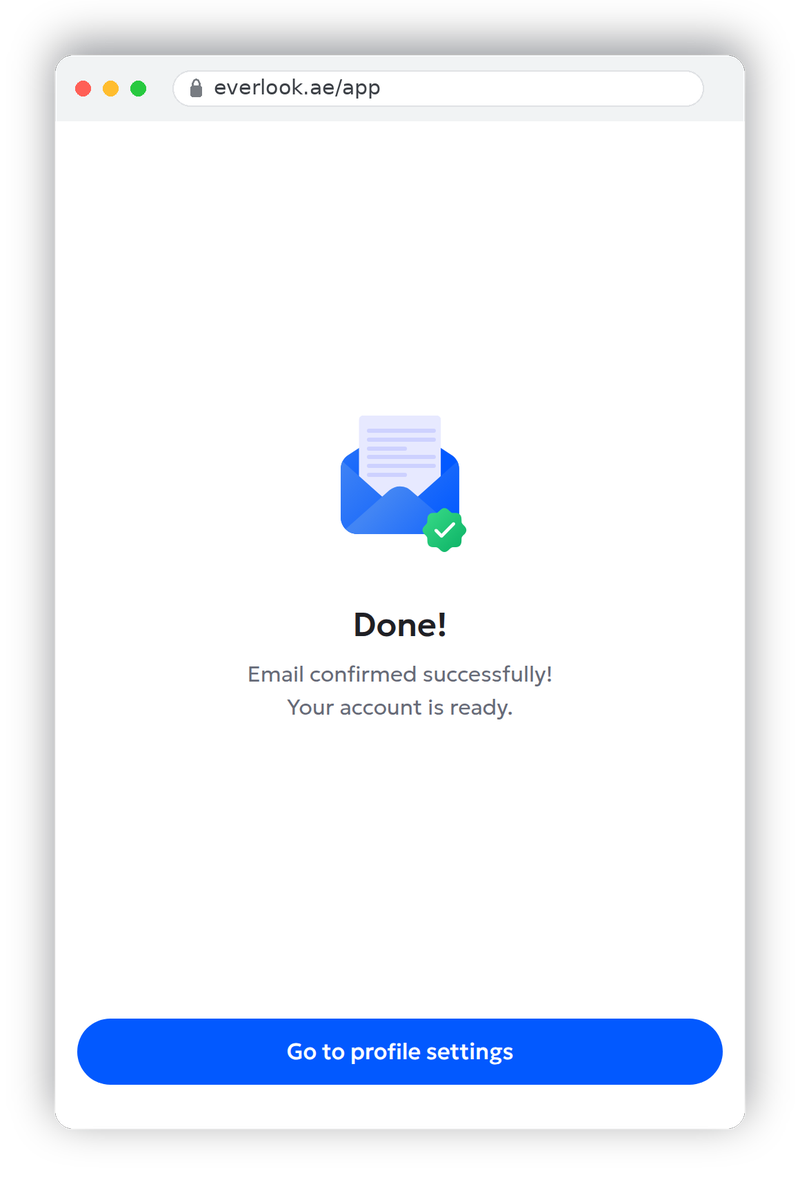
Once the code is accepted you'll see a short "Done" screen. Press Go to profile settings to open the profile wizard, which is where the useful work starts.
Step 4: complete the profile wizard
The wizard is nine short steps with a progress bar across the top. Every step has a Skip link in the corner, and your progress is saved as you go — nothing here blocks you, and anything you skip waits for you on the home screen afterwards. Skipping everything gets you into the app fastest; completing everything gets you clients. Here is what each step does and which ones deserve the extra two minutes.
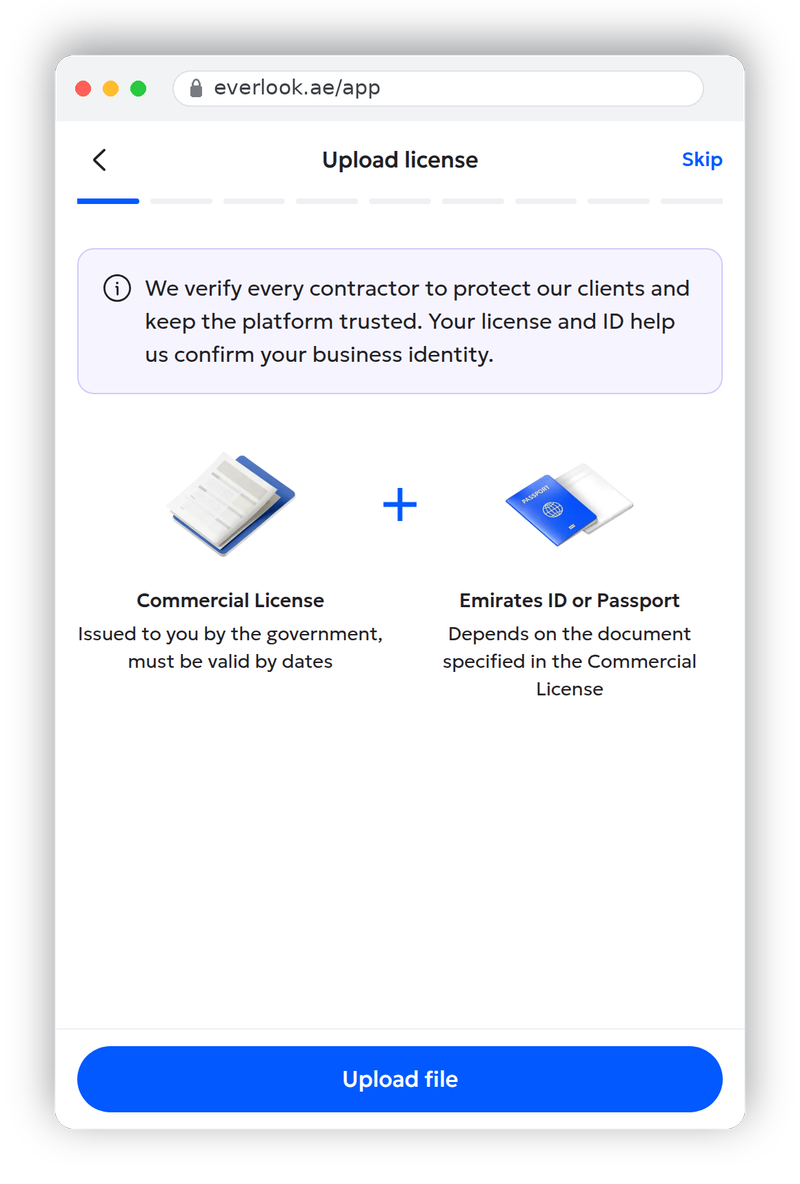
1. Upload licence
Two files: your commercial licence and the Emirates ID or passport of the licence holder. PDF or image, up to 25 MB each. Verification covers three things: an identity check, trade-licence validation, and the documents you upload here. It is also what unlocks the platform, because only verified contractors can receive job leads and submit offers. So if you complete only one step today, make it this one.
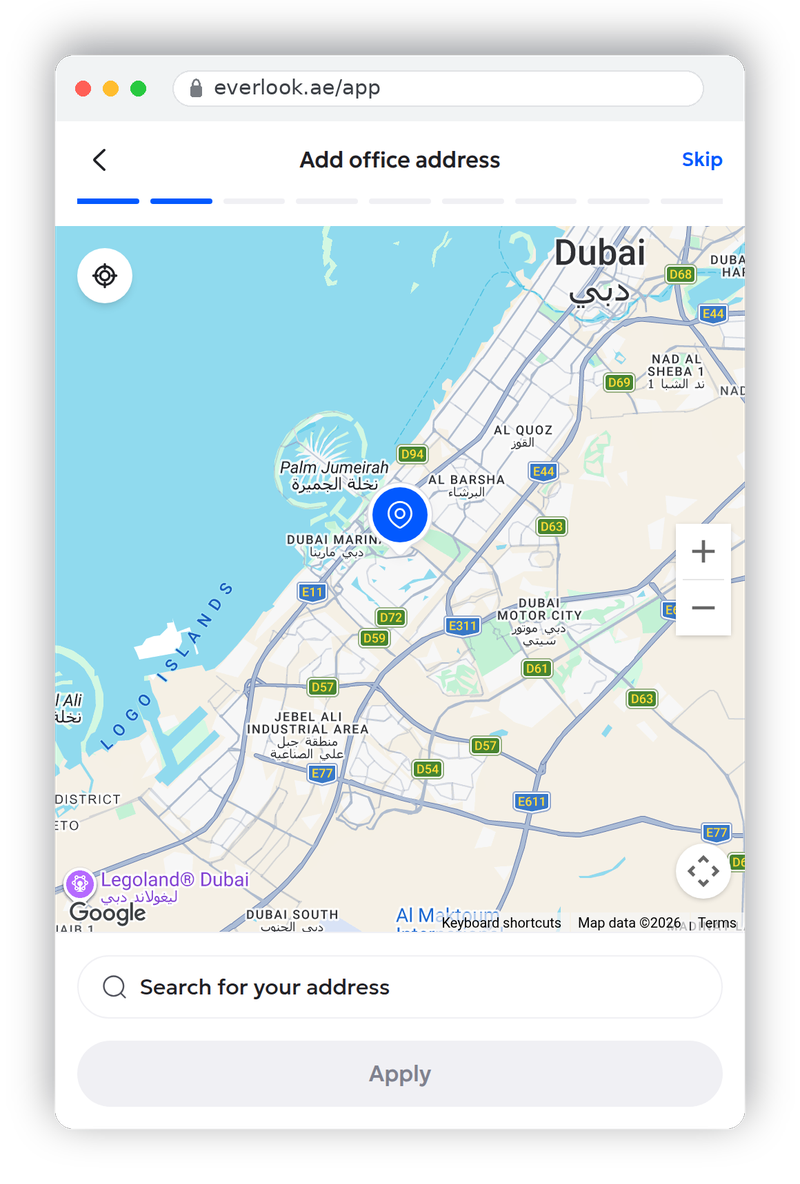
2. Add office address
A map of Dubai with a search bar. Search for your address or drag the pin, then press Apply. If you work from a van rather than an office, use the area you're based in; the address helps match you with jobs nearby.
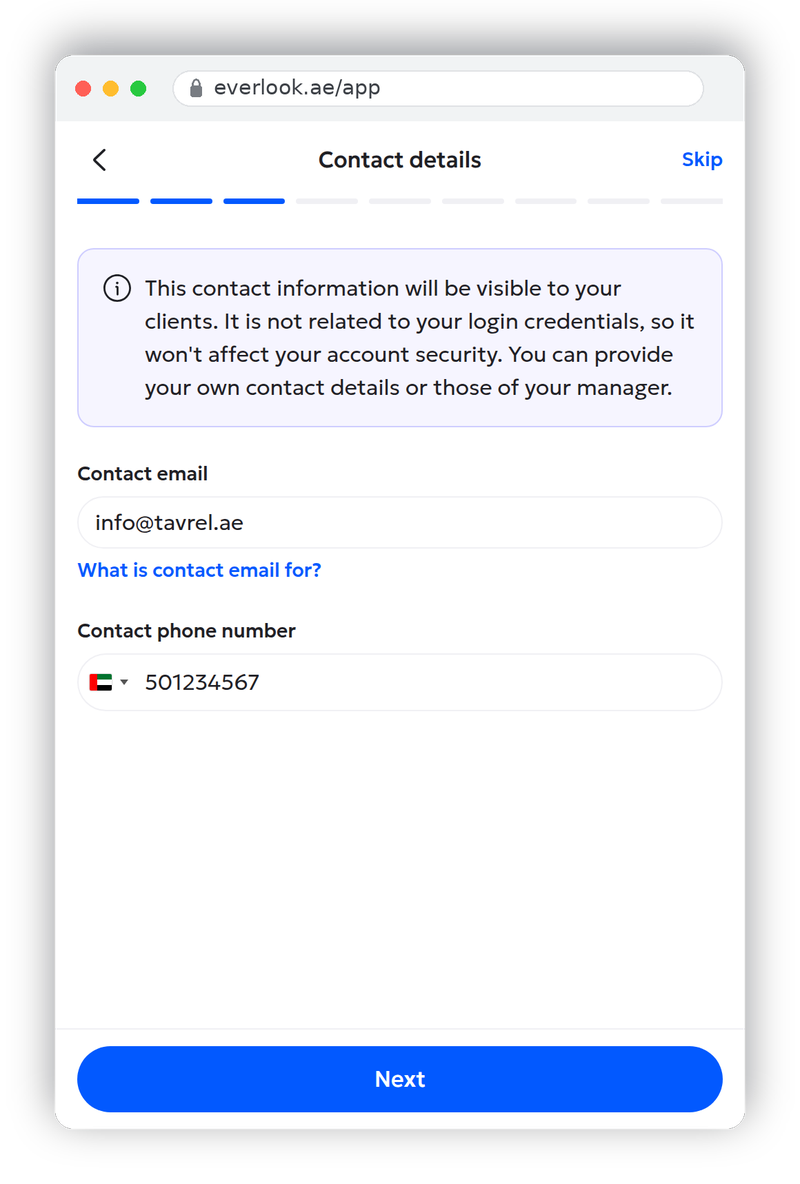
3. Contact details
The phone number and contact email your clients will see. These are separate from your login credentials, so changing them never affects how you sign in, and they can be your manager's details instead of your own.
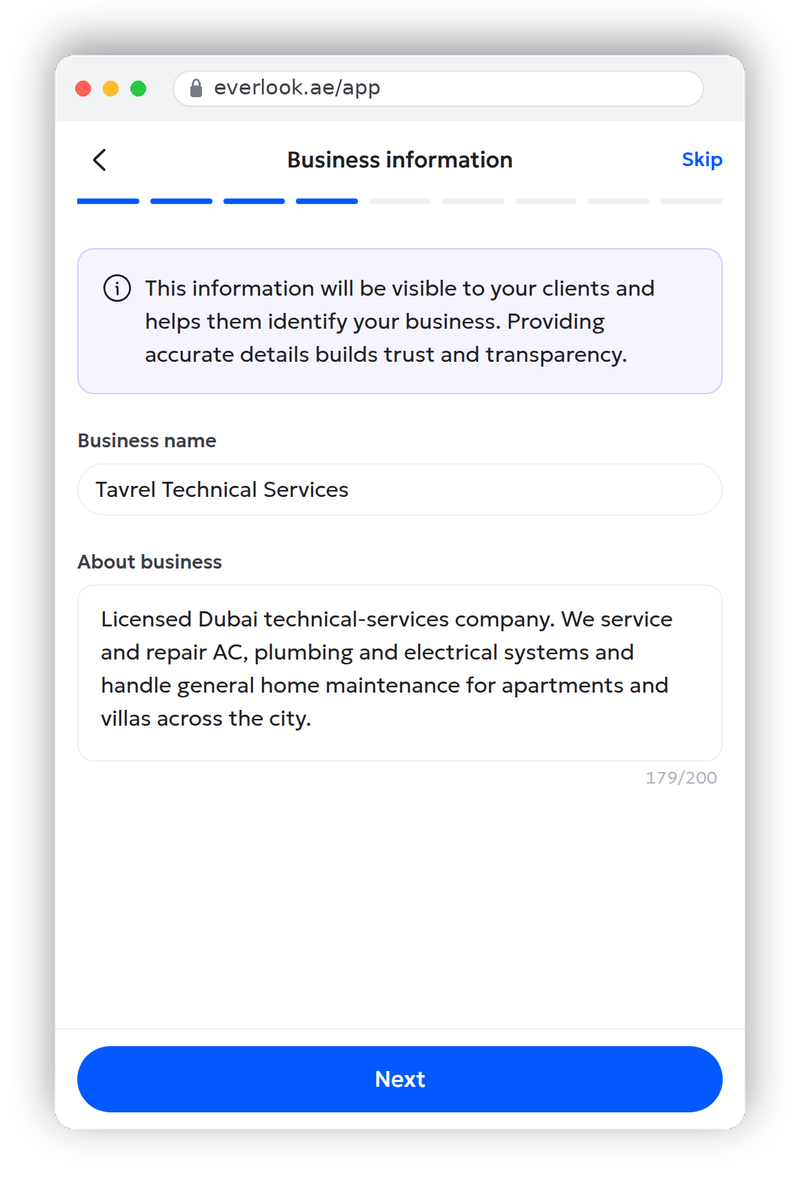
4. Business information
Your business name (already filled in from the licence lookup) and a 200-character "About business" description. One or two sentences on what you do and which areas you cover is enough; clients read this line when they compare offers.
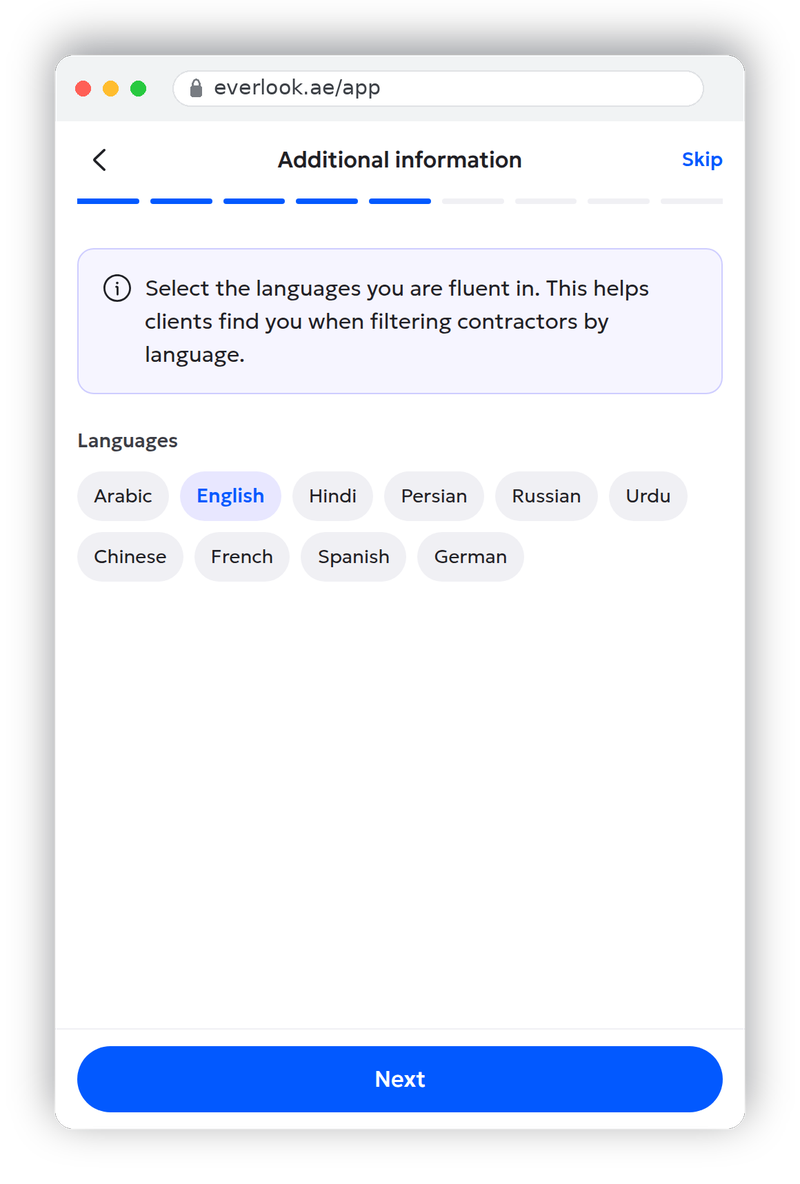
5. Languages
Tick the languages you're fluent in. Clients filter contractors by language, so an accurate list here means fewer awkward first calls.
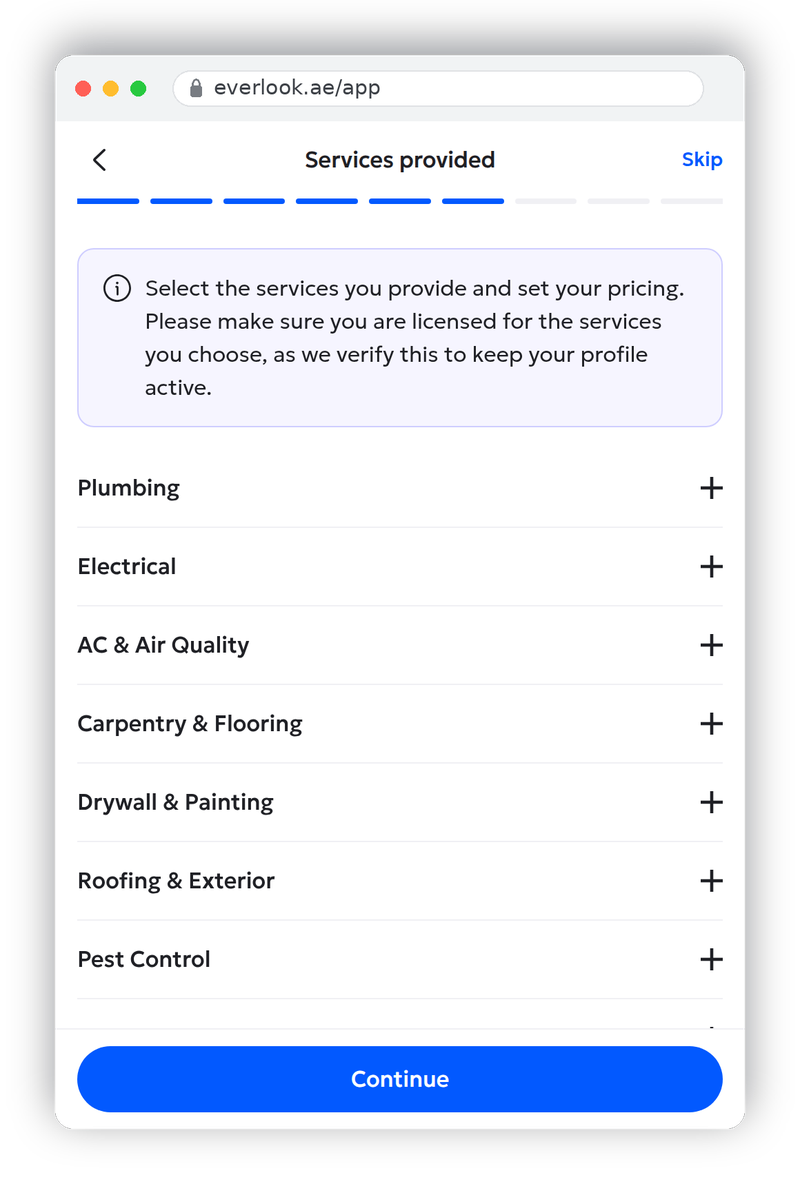
6. Services provided
The service catalogue: Plumbing, Electrical, AC & Air Quality, Carpentry & Flooring, Drywall & Painting, Roofing & Exterior, Pest Control and more. Expand a category and tick the specific activities you're licensed for. Everlook checks your selections against your licence to keep profiles honest. Attach a rate to each service or leave pricing blank and quote per job. You can turn individual job types on or off later in your profile's Setup Activities section, so your list always matches the work you actually take on.
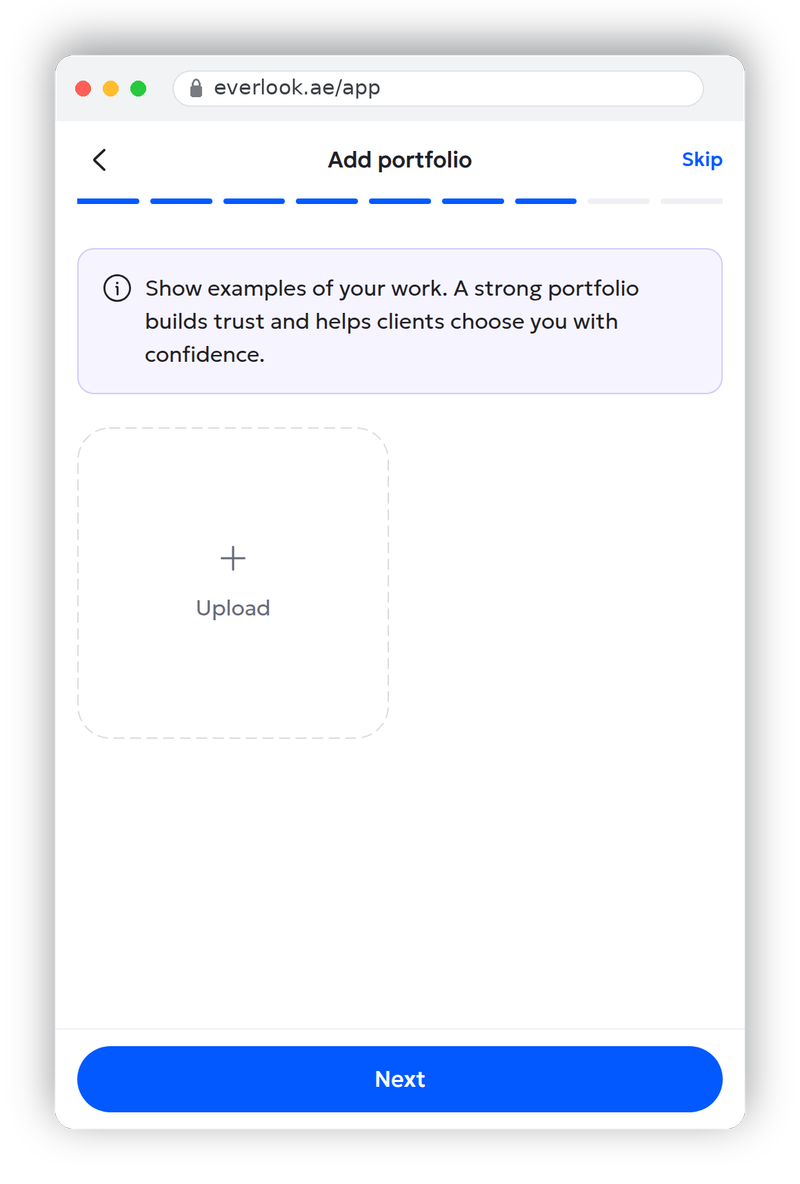
7. Add portfolio
Photos of past work. A profile with real before-and-after shots reads as established; an empty portfolio reads as brand new. Even five photos from your camera roll change how your offers land.
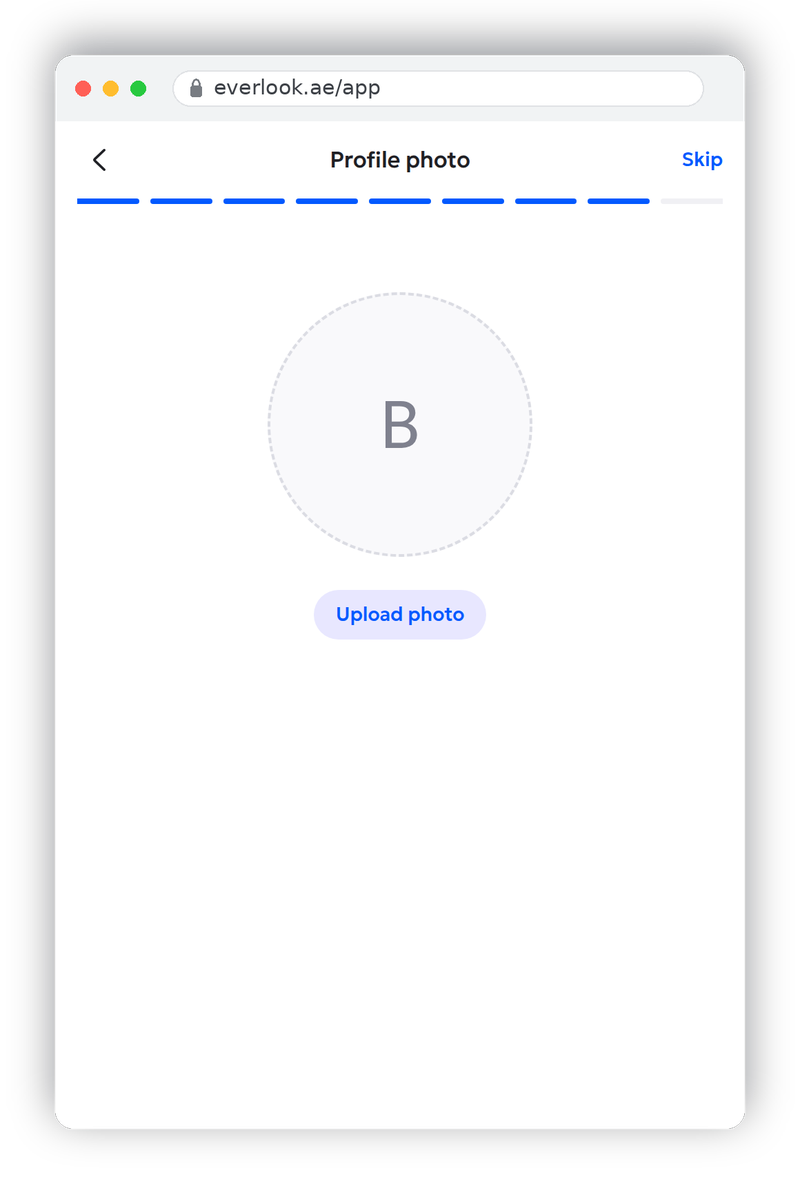
8. Profile photo
A face or a clean company logo. Skippable, but profiles with a photo look staffed rather than abandoned.
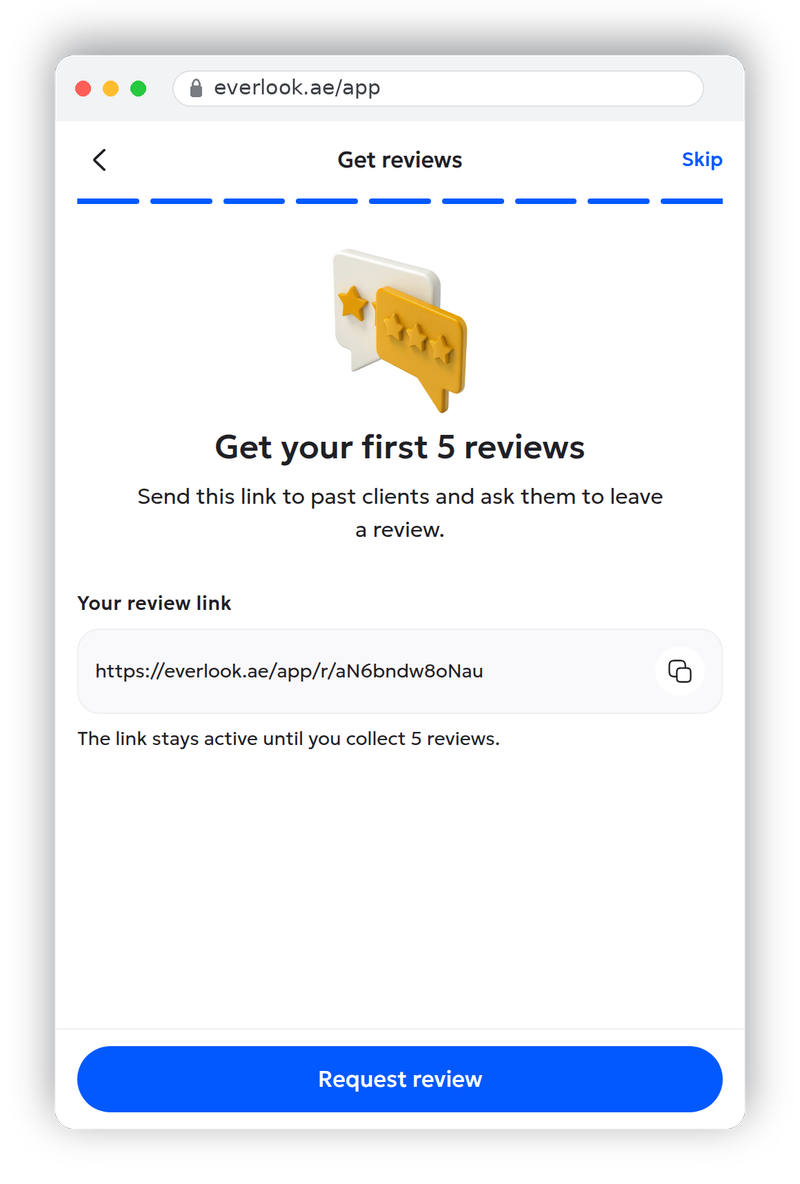
9. Get reviews
Everlook generates a personal review link and the wizard shows it here; you'll also find it later in your profile. Send it to past clients and ask them to leave a review; the link stays active until you collect your first 5 reviews. Reviews from work done before you joined are the fastest way to stop looking like a newcomer. Later, the reviews customers leave after a completed job show on your public profile and shape how your future offers are read.
What happens after you finish
The wizard drops you on your PRO home screen. If you skipped steps, a "Complete setup" card lists what's missing: documents and services are required for full access, the portfolio is optional. The bottom navigation is your working surface from here: Find a Job for open requests, My Jobs for accepted work, Messages for client chats.
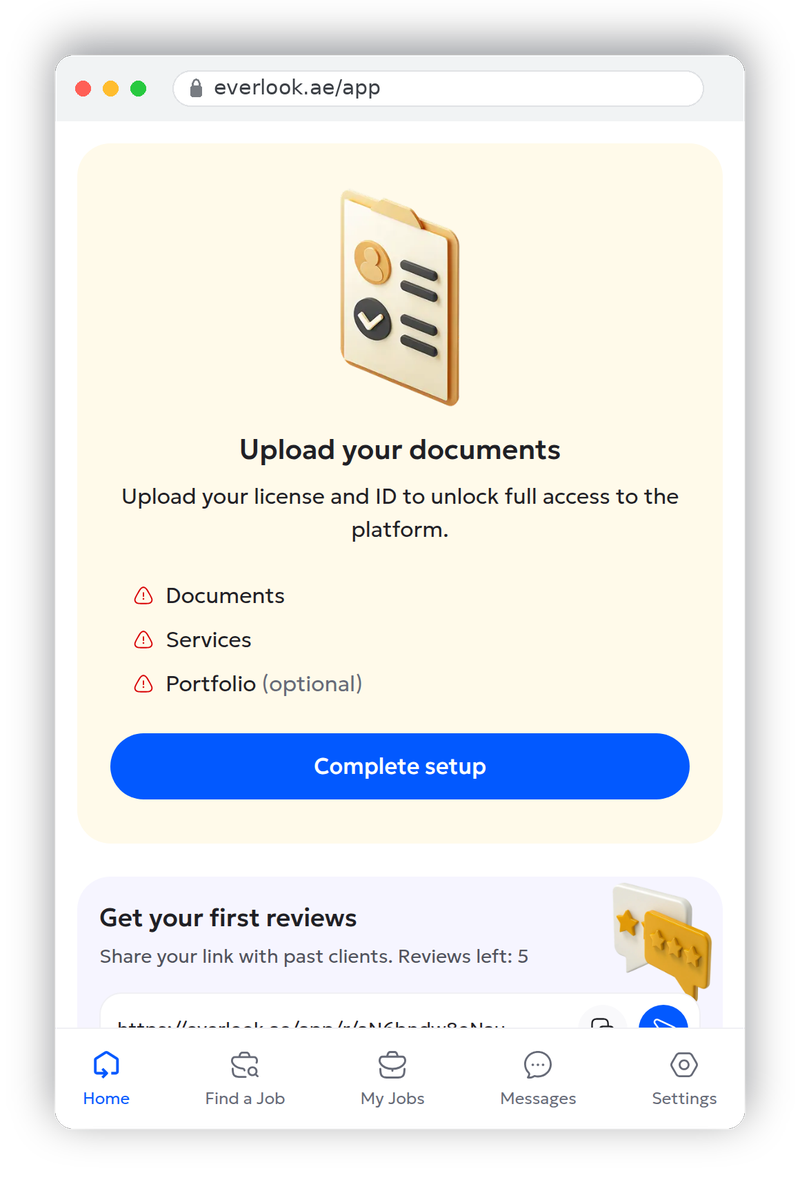
Uploaded documents go to Everlook's verification team for review; once they're confirmed, your profile gets full access to the platform. It's worth knowing what you're being checked against: clients are actively encouraged to verify a contractor's trade licence before hiring, so the licence you upload is not paperwork theatre — it's your first sales asset.
While you wait, read the platform from the client's side. Knowing what customers check before hiring tells you exactly which profile sections to polish first.
Frequently asked questions
Do I need a trade licence to register on Everlook as a contractor?
Yes. The signup form requires a licence number before it creates the account, and full platform access is granted after your licence document and ID pass review. Everlook verifies every contractor to protect clients, and that verification is also what makes a PRO profile worth having.
What documents does Everlook ask for?
Two files during the profile wizard: your commercial licence and the Emirates ID or passport of the person specified in that licence. Both upload as PDF or image files up to 25 MB each. The trade name on your profile should match the licence exactly.
Can I skip profile steps and finish them later?
Yes. Every wizard step has a Skip link, and your progress is saved between sessions. Anything you skip appears on your home screen afterwards in a "Complete setup" card: documents and services are needed for full access, while portfolio and photo can wait.
What if my licence number isn't found automatically?
A "Business name" field appears on the signup form. Enter your trade name exactly as it appears on the licence document and continue. The automatic lookup is a convenience, not a requirement, and the verification team matches your uploaded documents to the name you typed.
How long does verification take?
Everlook reviews uploaded documents shortly after you submit them; there's no fixed published timeframe. You don't have to wait idle: the rest of the profile wizard, your portfolio, and your review link all work while the documents are in review.
How do I get jobs, and does Everlook take a commission?
Customers post jobs and verified contractors in the matching category submit offers; you and the customer agree scope, price and timing in the in-app chat before they choose an offer. Everlook takes no commission on the project value and does not hold your payment, so you settle directly with the customer. The only platform charge is a small lead-access fee to submit an offer, always shown in the app before you confirm.
How you get jobs once you're verified
Everlook is a marketplace: customers post jobs, and verified contractors bid for them. Once a job is posted, verified contractors in the matching category can view it and submit an offer. From there both sides talk in Everlook's in-app chat to align on scope, price and timing, and the customer picks the offer that fits. Job activity reaches you through app notifications, so you are not refreshing a page waiting for work.
The money stays between you and the customer. Everlook takes no commission on the project value and does not hold the payment in escrow — you and the customer agree the final price, timing and payment method directly. What Everlook charges is a small lead-access fee to submit an offer, and that amount is always shown in the app before you confirm, so there is no surprise deduction.
This is why a complete profile pays off. A verified licence, a filled-out service list, a portfolio and a couple of early reviews are what make a customer pick your offer over the next one. Everlook connects licensed UAE contractors with clients who filter by service, language, reviews and response time, so the contractors who finish their profile surface first.
Find your next client on Everlook
Create your PRO account in about ten minutes, upload your licence, and start receiving job requests from clients in your area.
Find your next pro on Everlook
Post a job in minutes and get offers from trusted local contractors. Free to start.
Get started